
Motion attracts attention which is why a scrolling screen is a great way to target specific content and increase dwell time on your webpage or your socials.
This step-by-step video tutorial takes you through the process of creating a scrolling screen effect using Canva, plus you’ll get plenty of tips for improving user engagement and ensuring optimal usability.
What you’ll need to create a scrolling screen?
While it’s possible to create a scrolling screen using apps like Photoshop and Video Editor, your best option is to do it with Canva. You don’t even need the pro or paid version (although those are awesome and come with incredible add-ons) and like everything else with Canva, it’s just so EASY!
You will also need a screen recording tool and then you’re ready to go. If you have an Apple Mac you can use QuickTime Player which is already built into your iOS. If you’re running Windows you can hit the Windows Key + Alt + R to start screen recording.
You can also use your iPhone to screen record. Here’s what you do:
- Head to the screen where you want to start recording. This could be anything from a new webpage, a Facebook page, an Instagram feed or even social media reviews.
- Then you’ll need to open your Control Centre to find your recording button.
How you do this depends on the type of device that you have. If you have an iPhone X or a later model, swipe down from the top right-hand corner of your screen. If the Recording button is not there, head to Settings, then tap Control Centre and scroll down to find the red Screen Recording button. Tap the + icon next to it to add it to your Control Centre. Then you can open your Control Centre by pulling down from the right-hand corner.
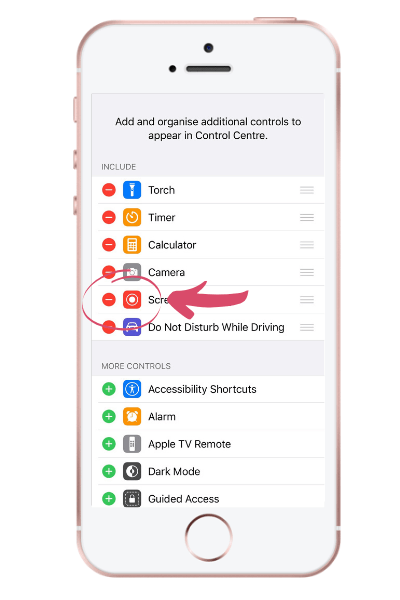
Starting and stopping the recording
Start recording by tapping the Screen Recording Button. It will count down 3, 2, 1 and then recording will start.
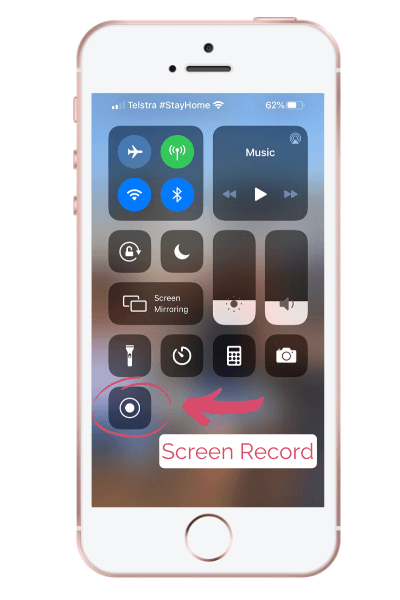
To stop, tap the red Record icon again.
Your video will save into your Photos.
If you have an Android phone, your best bet is to Google your particular model to see if it has a built-in screen recording option. Otherwise, you can easily download a free app like Loom, Monosnap or AZ Screen Recorder which work just as well.
Create your social media post in Canva
A final word
Rolling screens are a great way to attract and hold people’s attention on your website, your Facebook page, your Insta feed etc. Play around to see what works best with your content, but remember, too much visual activity can actually distract the viewer. The trick is to find the right balance which captures and holds your viewers’ attention and which gives them sufficient time to absorb what they’re seeing.
Looking for help with your social media?
Take a look at our social media experts on the Digital Mums Directory. We have a talented group of Social Media Managers and Virtual Assistants to choose from; You are bound to find one that is the ideal fit for your business.

How to grow an engaged email list with an irresistible lead magnet
If you’re a creative expert, coach or service provider looking to grow your business and increase sales, you’ve probably heard about the importance of building your email list. And for good reason! Email marketing is still one of the most effective ways to engage, nurture, and qualify leads for your business. It’s like a warm hug that keeps your clients coming back for more!
How To Find A Great Social Media Manager
A talented social media manager can unlock massive potential for your small business. Social media is huge. There’s no doubt that it can make your business bigger. From a business perspective, social media has become a significant contributor to how consumers discover...

Top Work From Home Jobs For Mums
Working from home is a great option for mums because of the flexibility it allows. Mums can structure their work commitments around their personal lives because they don’t have to physically leave the house and stick to formal office hours, plus they can often...